What is Kronos
Kronos is an advanced dashboard that puts you in full control of your Appbox. With Kronos, you can easily claim your server, schedule automatic restarts, and manage updates—making it simple to oversee every aspect of your Appbox from one place.
Claiming Your Appbox
-
Log In
Use the credentials emailed to you to log in to the Kronos Dashboard. -
Select Your Server
Once logged in, you'll see your server listed on the Dashboard. Click to select it.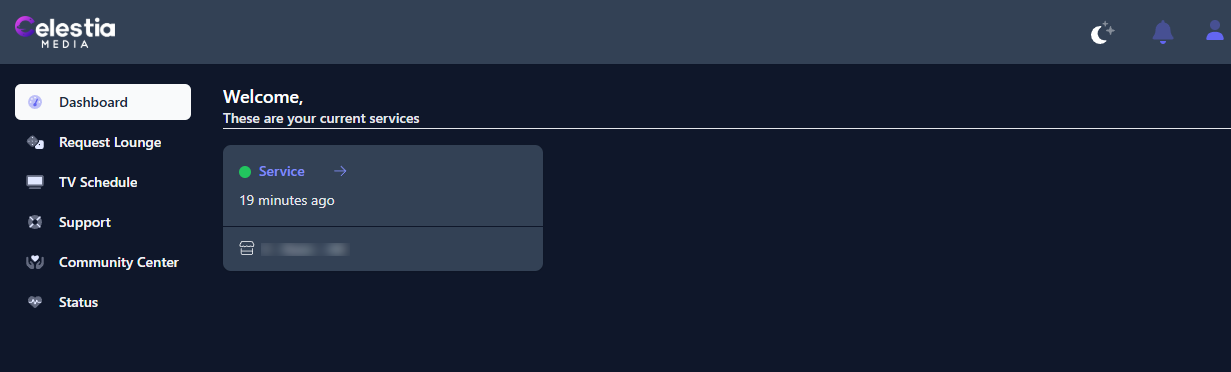
-
Claim Your Server
On the Server Overview page, look for the Claim server section.- If you're using Emby or Jellyfin, make sure to save the provided username and password for the admin account. On Plex, you have to sign into your account.
- Click the Claim button.
-
Confirmation
After claiming, you should see a "Success!" message. Your Appbox is now linked to your account, and you can log into your Media Server directly by clicking the link provided under 'Media server type available at' on the "Service information” panel.
Kronos Dashboard Server Controls
Emby Appbox
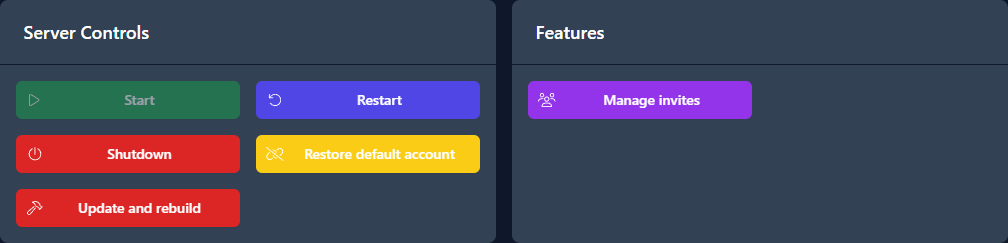
The Kronos dashboard also provides a range of tools for troubleshooting and customization. These tools can help you optimize your server and ensure a seamless streaming experience for your users. Some of the things you can do on the Kronos dashboard include:
-
Restart
If you encounter issues, use the dashboard to restart your server. This can resolve many common problems and keep your server running smoothly. -
Restore Default Account
If you forget or lose access to the admin account, click this option to reset the account to default. This will delete and recreate the admin account. -
Update and Rebuild
If issues persist after troubleshooting and even restarting the Appbox, use this option. This will recreate your server without erasing your data and will update the server version. Most settings will remain unchanged. This will resolved most issues not related to setting configuration. -
Manage Invites
Create invites directly from the dashboard by entering the new user's email and password. If the user has an Emby Connect account, you can optionally enter their email. You can also grant library access here. For further adjustments to user permissions, please log in to the Emby server.
Setting Up Daily Restarts
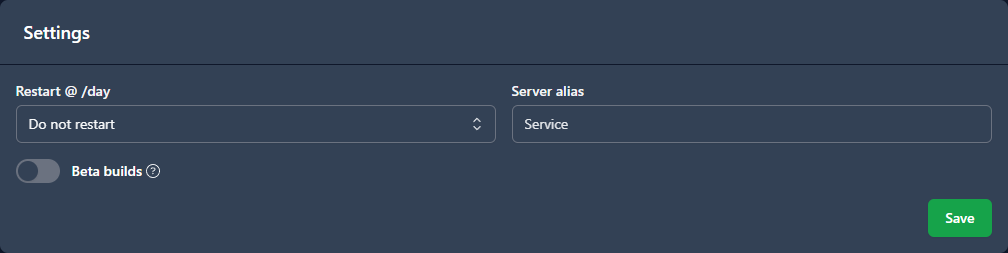
Scheduling daily restarts allows your Appbox to apply minor updates and reduces the chance of long-term issues from continuous uptime.
-
Log In
Use your credentials to access the Kronos Dashboard. -
Select Your Server
Locate and select your server from the Dashboard. -
Schedule a Restart
On the Server Overview page, scroll down to the restart settings.
- Choose the desired time for your daily restart.
- Click Save.
- You may also opt into beta builds. -
Set Your Timezone
Click your profile icon in the top right corner and go to 'Account Settings.' -
Update User Settings
Select User Settings, then change your timezone to match your local time.
This ensures restarts occur at the correct time for your location.