Emby - Direct Play
The "Auto" quality doesn't work 100%. Depending on your speedtest results. You might have to set a maximum bandwidth.
To enhance your playback experience, locate the settings in your Emby app and navigate to the Video Settings section. Ideally, set the Video Quality to Original or Maximum. If you experience playback stutters or frequent pauses, reduce the quality setting until you achieve smooth playback. This approach ensures media playback on your device at the highest possible quality and can help reduce strain on the server.
- Check your results using the CDN's Speedtest.
- Recommended streaming bandwidth limits.
Note
This guide shows how to do it for web browser users, but the process should be pretty similar for other devices/clients.
-
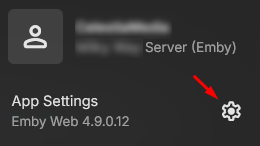
Open the App Setting

-
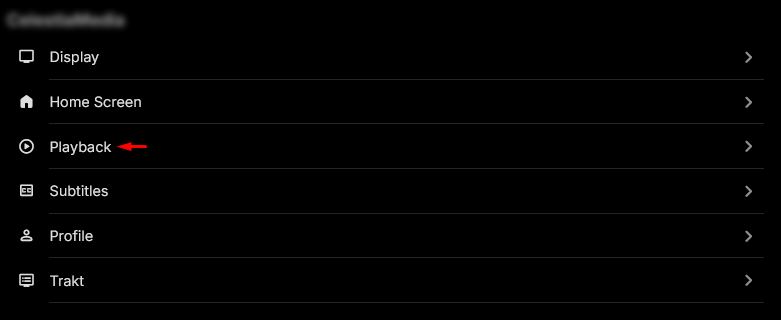
Click the Playback Tab
-
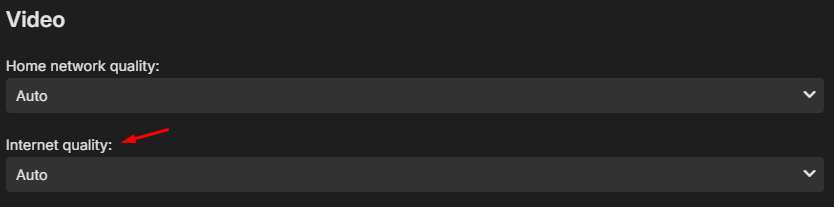
Change the Internet quality from "Auto" to "4K - 160 Mpbs" or the highest amount available.
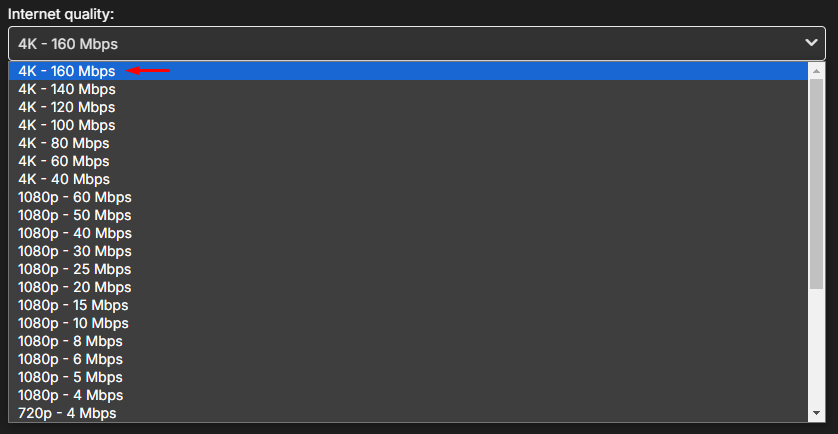
This won't play everything at 160 Mbps, this mean you are give the bandwidth to go up to 160 Mbps.